
Besides visuals and sound, text effects play a significant role in conveying the content and emotions of a video. With Premiere Pro, filmmakers can create beautiful, smooth, and professional text effects with just basic operations. Let's explore some beautiful text effects in Premiere Pro that will make your videos look more professional right from the start.
Beautiful text effects in Premiere for filmmakers.
Adobe Premiere Pro is a popular video editing software that offers numerous editing, cutting, and adjustment tools to make videos professional and engaging. In particular, Premiere Pro's font effects are very diverse, allowing editors to flexibly handle titles, captions, and text content to suit different video styles. To effectively utilize this tool, filmmakers need to understand the basic and common text effects listed below.
Basic Text – Essential Graphics Effects
This is a basic set of beautiful text effects in Premiere Pro, allowing editors to easily create and edit fonts, colors, sizes, alignment, and spacing through the Essential Graphics panel. This effect is often used when creating titles, captions, and lower thirds (small annotations, such as job titles or locations) in corporate videos, interviews, or promotional films due to its neatness, clarity, and readability.

Essential Graphics provides many basic effects for creating intros and titles for videos.
Fade In – Fade Out Effect
Fade In – Fade Out allows text to appear and disappear smoothly by adjusting opacity over time. This effect creates a smooth, non-harsh visual experience, suitable for storytelling videos, documentaries, or transitions requiring subtlety and gentleness.
Text Slide Effects
Text Slide is an effect where text moves from the left, right, top, or bottom of the frame by adjusting its Position and Ease. This effect makes videos more dynamic and is often used in commercials, social media videos, or product introductions that need to quickly grab attention.
Typewriter Effect
The Typewriter effect, or more simply, the typing effect, allows the text to display character by character, simulating the act of typing. This effect is suitable for introducing content, creating a narrative feel, or a sense of reminiscence. Vlogs, short films, or personal videos often use this attractive text effect in Premiere most frequently at the beginning or end of the video.
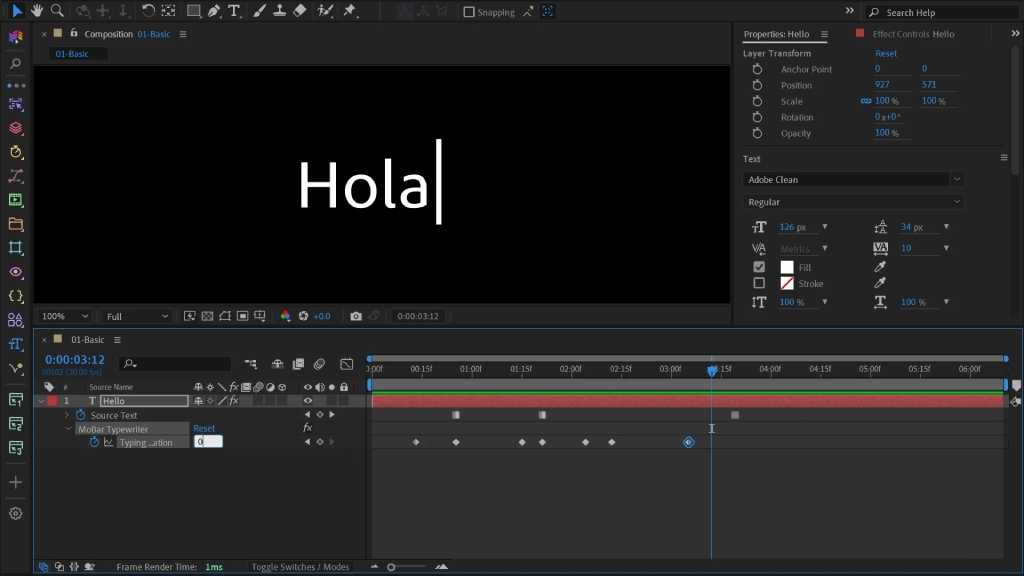
Typewriter creates a text-to-speech effect where characters appear sequentially, simulating the action of typing on a keyboard in a video.
Scale Effect – Pop Text
The Scale effect slightly enlarges or shrinks text as it appears, creating the illusion of it "popping" up on the screen. This is a beautiful text effect in Premiere, often used to emphasize important messages such as main titles, slogans, or calls to action in marketing and advertising videos.
Mask Text Effect
Mask Text allows text to gradually appear or disappear as it moves, creating a creative and cinematic visual effect. This effect is often used in intros (short opening sequences), openings (long opening sequences), or advertising videos that require artistic elements and visual emphasis.
Glow and Drop Shadow Effects
Glow and Drop Shadow are effects that help text stand out from the background. Glow creates a luminous, pop-up effect, while Drop Shadow adds a shadow to increase contrast and readability. These text effects are commonly used in headlines and introductions, especially effective when placed on a dark or heavily detailed background.
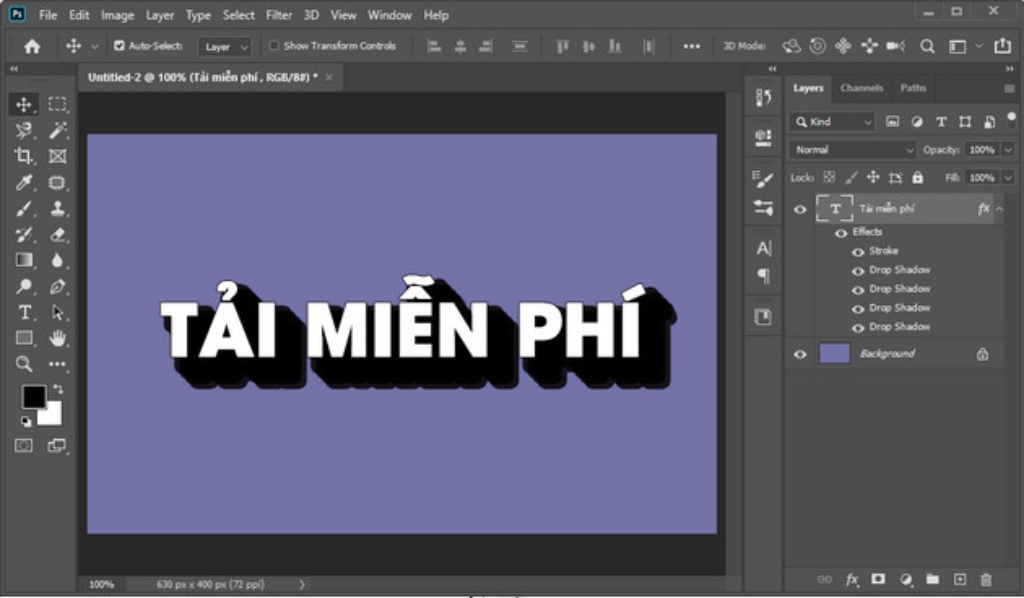
Glow and Drop Shadow create a shadow effect for the text.
Blur In – Blur Out Effect
Blur In – Blur Out is an effect that blurs text as it appears or disappears, creating depth and a softer feel to the frame. This effect is suitable for corporate videos, art films, or segments that require subtle emotional transitions.
Some things to keep in mind when applying beautiful text effects in Premiere.
In addition to using beautiful text effects in Premiere Pro, video editors can also combine other elements such as fonts, background colors, and text speed to express their filmmaking goals. In reality, applying these effects isn't difficult, even for beginners; however, making the final product impressive, harmonious, and visually appealing is not so simple.
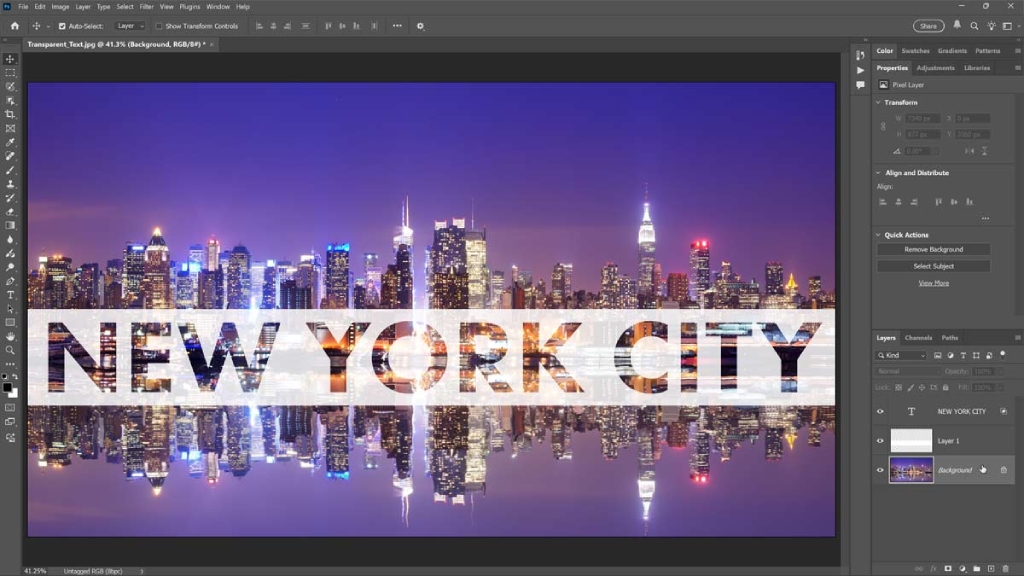
To make text stand out, you need to consider the effects, font, background, and size to ensure they are appropriate.
Here are some things to keep in mind when applying beautiful text effects in Premiere Pro:
- The content must be easy to read: Editors should prioritize readability and clarity over aesthetics. Fonts, colors, contrast with the background, and text speed should be carefully chosen to avoid visual clutter or difficulty in reading.
- Consider the cost: If you want to use a wide variety of effects in Adobe Premiere Pro, you may need to purchase Adobe Creative Cloud software and pay a monthly or annual fee. Of course, using cracked versions is still possible, but it will limit some features regarding effects, editing, and file export and storage capabilities.
- Consistency: Text effects should be used consistently in style throughout the same video, although they may differ in the opening and closing intros. Changing too many different fonts, movements, or effects can make the overall video lack cohesion and appear less professional.
- Text scrolling speed: The timing of text display should be carefully considered to match the editing pace and the viewer's reading speed. Text appearing too quickly or disappearing too soon will reduce the effectiveness of information transmission, especially in videos with long or informative content.
- Suitable for the nature of the video: With corporate filmsFor introductory videos or documentaries, simple and subtle effects are often more effective than overly complex or elaborate movements. Conversely, for short films and music videos, using elaborate fonts and text effects is more likely to impress viewers.
Beautiful text effects in Adobe Premiere Pro are an important tool that helps make videos clearer, more polished, and more impressive when conveying content to viewers. Using text effects appropriately, in the right context, and consistently will improve the overall quality of the video and demonstrate the professionalism of the entire film crew. Understanding and applying them effectively, Premiere Pro can fully meet the needs of video editing, from basic to professional levels.




 English
  Vietnamese