

Knowing how to blur videos isn't just about hiding the flaws of a cluttered background; it's a powerful visual language that guides the viewer's attention to the main subject. This article will provide you with the most comprehensive overview, from filming techniques to post-production, helping you create cinematic-quality footage using only readily available tools.
Why is video blurring an important skill?
Mastering video blurring techniques offers a double benefit for content creators: it enhances professionalism and solves potential technical issues. Here are the specific reasons:
- Create a focused visual effect: When the background blurs, the viewer's eye is automatically drawn to the sharpest point in the frame, especially the main character. This is extremely important in sales videos or product reviews.
- Elevating aesthetics: The Bokeh effect (blurring highlights) creates a luxurious feel, helping your video shed its "shot with a phone" label and look like it was produced by a professional studio.
- Information security and privacy: During the filming process, it's easy to accidentally include license plates, street names, house addresses, or the faces of passersby. Blurring is the quickest way to protect your privacy and avoid future legal troubles.
- Overcoming behind-the-scenes shortcomings: Not everyone has a clean and tidy studio. Blurring helps you hide the room's clutter, old wall patches, or irrelevant details, making the frame look significantly "cleaner."
- Reduce noise in video: Noise often appears in the darker areas of a video. Slightly blurring these areas helps to mask this technical flaw, making the video look smoother when uploaded to social media.
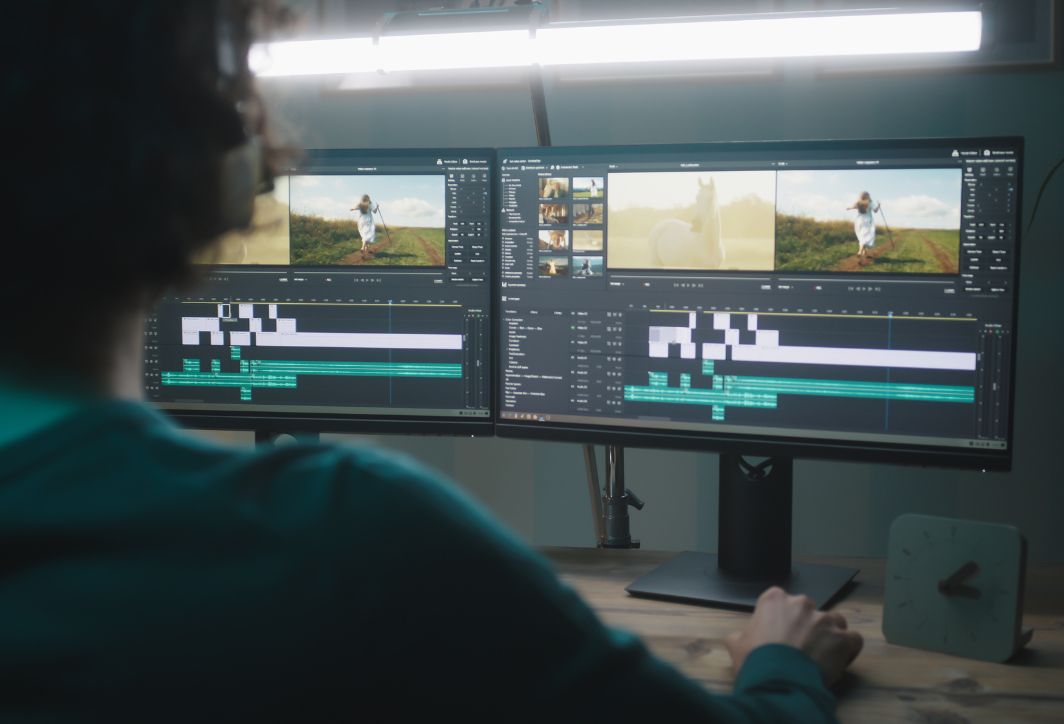
Blurring the necessary parts of the background helps improve video quality.
Effective ways to blur the background in videos.
1. How to blur videos on your phone using CapCut
CapCut is currently the most powerful tool for post-processing on mobile devices. To create a professional-looking video with background blur, follow these steps:
Step 1: Import data and apply the overall blur effect.
- Open the CapCut app, select New project and add the video you want to edit.
- In the toolbar at the bottom, select the item Effect -> Video effects.
- Search for the keyword "Blurred" or go to the category. Basics/Lens, select effect Blur.
- Extend the blur effect slider to match the length of the original video. Your entire video will then be blurred.
Step 2: Use the Overlay feature to keep the subject in focus.
- Go back to the main menu, select the item Coating -> Add a top coat.
- Select the original video that you added earlier.
- Use two fingers to zoom in on the overlay so that it perfectly fits the frame of the original video below.
Step 3: Background separation using artificial intelligence (AI)
- While selecting the Overlay video bar, find the tool. Crop image (or Remove background).
- Select Automatic background removalThe system will calculate and retain the sharpness of the subject, while the background (of the original video) remains blurred.
Step 4: Customize the natural blur level.
- If the background looks too blurry and artificial, tap the effects bar. Blur In Step 1.
- Select Customize Then, drag the slider to level 15-25 to create the most realistic and subtle blur effect.
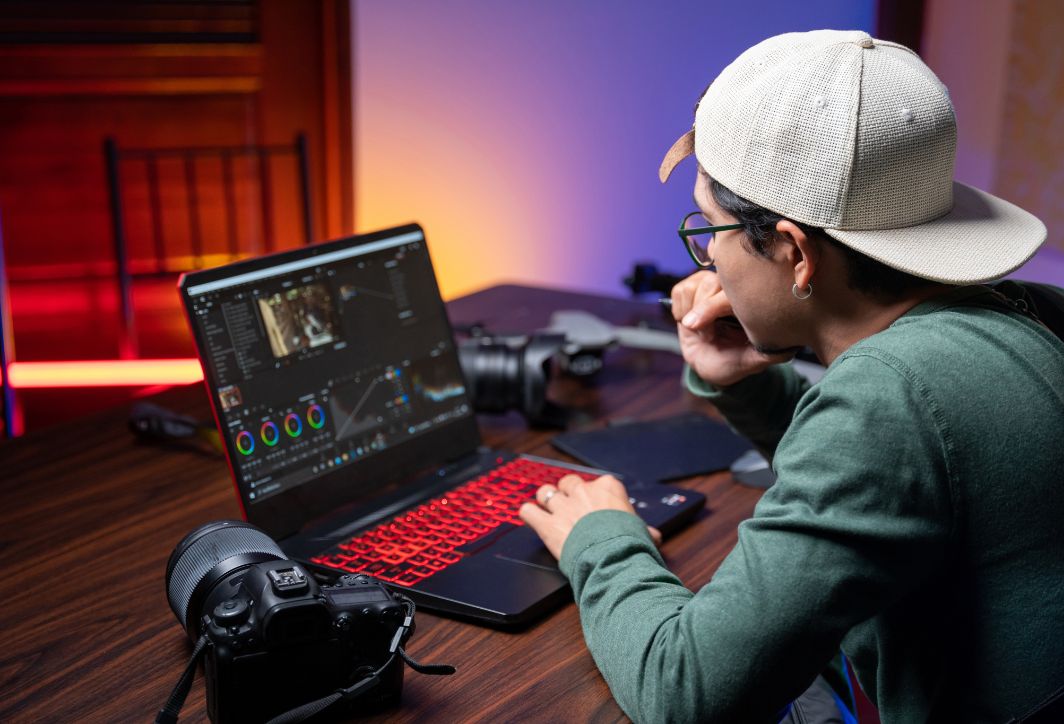
Adjust background blur on your computer with simple steps.
2. How to blur videos on a computer using Premiere Pro
For professional editors, Adobe Premiere Pro offers absolute control through the following steps:
Step 1: Apply the Gaussian Blur effect.
- Drag the video to the Timeline. Open the panel. Effects (usually in the bottom left corner).
- Type "Gaussian Blur" into the search bar and drag this effect directly onto the clip on your Timeline.
- In the table Effect Controls, find the item Blurriness and increase this value (e.g., 50) to see the video become blurry.
Step 2: Create a selection (Masking) for the subject.
- Right below the Gaussian Blur effect in the Effect Controls panel, you'll see icons for a circle, a square, and a pen tool.
- Select the icon Pen tool and draw around the character you want to keep in focus.
- After you've finished drawing, check the box. InvertedAt this point, the area inside the drawing will be sharp, and the area outside (the background) will be blurry.
Step 3: Smooth the edges (Feathering)
- To make the transition between the blurry and sharp areas look natural, increase the parameter. Mask Feather Increase the focus to around 50-100. This helps prevent the edges of the subject from becoming too sharp.
Step 4: Motion Tracking
- If the character moves, you need to tap the "Play" (Track selected mask forward) icon next to the Mask Path option.
- Premiere will automatically calculate how the blur moves to match the character's position throughout the video. how to blur a video The highest quality ensures consistently stable image quality.
3. How to blur videos online without installation.
If you're in a hurry or your computer has low specifications, online tools like Kapwing or Flixier are the best options:
Step 1: Access and upload the video to the system.
- Go to the website Kapwing.com. Click Create New Project and upload the video file from your computer.
Step 2: Use the local blur tool.
- Select the video on the editing screen. In the right-hand panel, find the item Edit -> Adjust.
- Find the slider BlurHowever, if you only want to blur a part of it, choose the tool. Elements -> Search for "Blur mask".
- A translucent block will appear, and you can drag and drop this block to any location you want to hide (such as a logo or a stranger's face).
Step 3: Naturally blur the background (AI Background Blur)
- Some modern browsers support the button. Remove/Blur BackgroundWhen you click on it, the server system will automatically separate the layers and blur the background for you without requiring manual drawing.
Step 4: Publish and download
- Once you are satisfied, press the button. Export ProjectOnce the cloud processing is complete, you can download the MP4 video to your computer.
- Note: With the free versions, these tools often have watermarks; you may need to register an account to remove them.
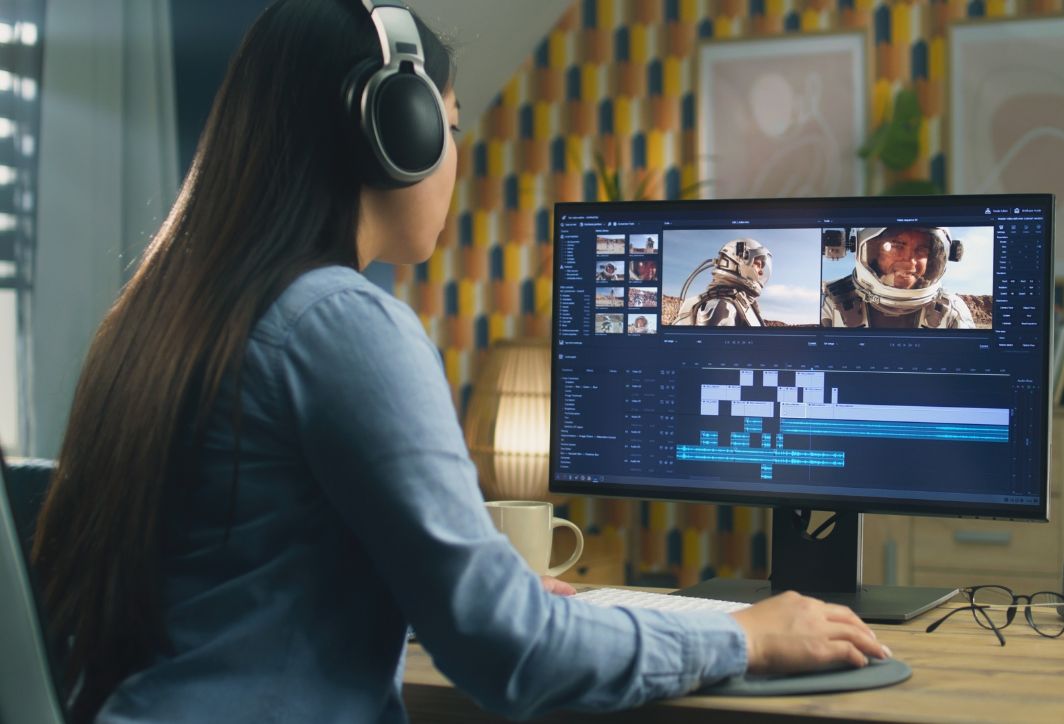
Blur the background using simple and easy-to-use software.
How to shoot videos to get a natural blur effect without post-production.
Instead of relying entirely on software, mastering the physical techniques of filming will help you achieve the most realistic blurring effect. This is the method that professional filmmakers always prioritize:
- Use a lens with a large aperture (small f-stop): If you're using a camera, choose lenses with apertures like this: f/1.4, f/1.8 or f/2.8The larger the aperture (the smaller the f-number), the shallower the depth of field (DOF), resulting in a more blurred and dreamy background.
- Increase the distance between the subject and the background: Position the subject as far away from the wall or background as possible. This distance allows the lens to create a natural blur without the need for digital manipulation.
- Use a long focal length (Zoom in): Instead of standing close and using a wide-angle lens, stand further away and use a telephoto (zoom) lens. A longer focal length (e.g., 50mm, 85mm, or 200mm) will “compress” the background, making the blurred area appear thicker and smoother.
- Take advantage of the Portrait Video feature on your smartphone: Many high-end smartphones now have a "Portrait Video" mode. Keep your phone steady and ensure there is enough light so that the LiDAR or AI sensor can accurately measure the depth.
Specialized video blurring software for each platform (2026)
Each device has its own powerful "assistants." Choosing the right tool will help you optimize your editing time.
- For macOS users (Final Cut Pro): Final Cut Pro has features Cinematic Editor Extremely powerful. You can change the focus point from one person to another and adjust the background blur with just a few clicks, perfectly compatible with videos shot on iPhone.
- For professionals on Windows (DaVinci Resolve): Use tabs Color and tools Power WindowYou can draw a selection around the subject, then invert the selection and increase the parameter. Blur in the table Blur/SharpenDaVinci delivers the smoothest blurring results thanks to its physical light processing algorithm.
- For Android (Node Video): This is a sophisticated video editing app for Android. It offers motion blur and lens blur filters that are rarely found in other mobile apps.
- For browsers (Adobe Express): No installation required, Adobe Express offers “Quick Actions” that lets you remove or blur video backgrounds in just seconds thanks to Adobe Sensei (AI) technology.

There are many software programs that help you customize the background.
How to fix common video blurring issues.
During the process of blurring a video, you may encounter some technical errors. Here's how to handle them:
The "Halo Effect" error:
- Manifestation: There is a halo or unblemished area surrounding the subject.
- Solution: Reduce the blur intensity and increase the parameter. Feather (edge softness) or Expansion (Expand the blurred area) to make the transition look more natural.
The subject becomes blurry when moving quickly:
- Symptom: The software fails to keep up with the person's movements, resulting in faces or hands becoming blurred in the background.
- Solution: If using Premiere, use the feature. Frame TrackingIf using CapCut, split the video into segments and apply background removal/blurring to each short segment for more accurate AI recognition.
The video became choppy and laggy after applying the effect:
- Symptom: Video preview freezes.
- Solution: Reduce the playback resolution to 1/2 or 1/4. Additionally, perform the following steps: Render Selection Before viewing, allow the computer to finish processing the complex effect layers.
Golden tips to prevent the blurring effect from looking "fake".
To achieve the best cinematic blur effect in your video, you need to master these tips:
- Don't overdo the dimming intensity: A common mistake for beginners is setting the opacity to 100%. This completely destroys the background. Keep the opacity at a level where viewers can still vaguely perceive the surrounding space to give the video more "breath."
- Pay attention to the distance between the subject and the background: When filming, if the subject is standing too close to the wall, the software will have difficulty separating the layers. Stand at least 2 meters away from the background to create "physical space," which will help the blurring effect look smoother in post-production.
- Control the hairline and fine details: When removing the background to create a blur effect, hair is often the most problematic area. You should use the Refine Edge tools on your computer to process the stray hairs, avoiding the feeling that the subject has been "cut and pasted".
- Synchronize lighting: If you blur the background too strongly but the lighting on the subject's face is too harsh and doesn't match the background tone, the video will look extremely unnatural. Use additional color filters to harmonize the entire frame after blurring.
- Frame Rate: When applying motion blur, ensure the frame rate of the original video is high enough (30-60fps) so the software has sufficient data to process the moving pixels.
Mastering video blurring is a crucial step on the path to becoming a professional content creator. This effect is not simply a trick to conceal background flaws, but also an art of conveying emotion, enhancing the aesthetic value of any film. Through this article, hopefully you have found the right solution for yourself, whether it's quickly done on your phone with CapCut, meticulously edited on a computer with Premiere Pro, or even a complete overhaul of your filming technique from the start.