

Recording gameplay videos isn't just about pressing a record button; it requires a sophisticated combination of powerful hardware and optimized software. Let's explore simple ways to create professional-looking game footage in this article.
Overview of current gaming video recording needs
Having a high-quality gameplay video not only helps you preserve memories but is also the first step towards becoming a professional streamer or creator. Today's audience is very demanding; they not only want to see your gaming skills but also require smooth, high-resolution images and vibrant sound.
To achieve this, you need a thorough understanding of the supporting tools. If shooting on a computer, the graphics card and CPU are crucial factors in avoiding frame rate (FPS) drops during recording. If shooting on a phone, optimizing memory capacity and managing device temperature are important considerations.
The ultimate goal of professional gaming video production is to create a connection between players and viewers, where visuals serve as the most powerful language for conveying emotions. Therefore, choosing the right filming method from the start will save you a lot of time in post-production and ensure the final product always meets the highest standards on social media platforms.
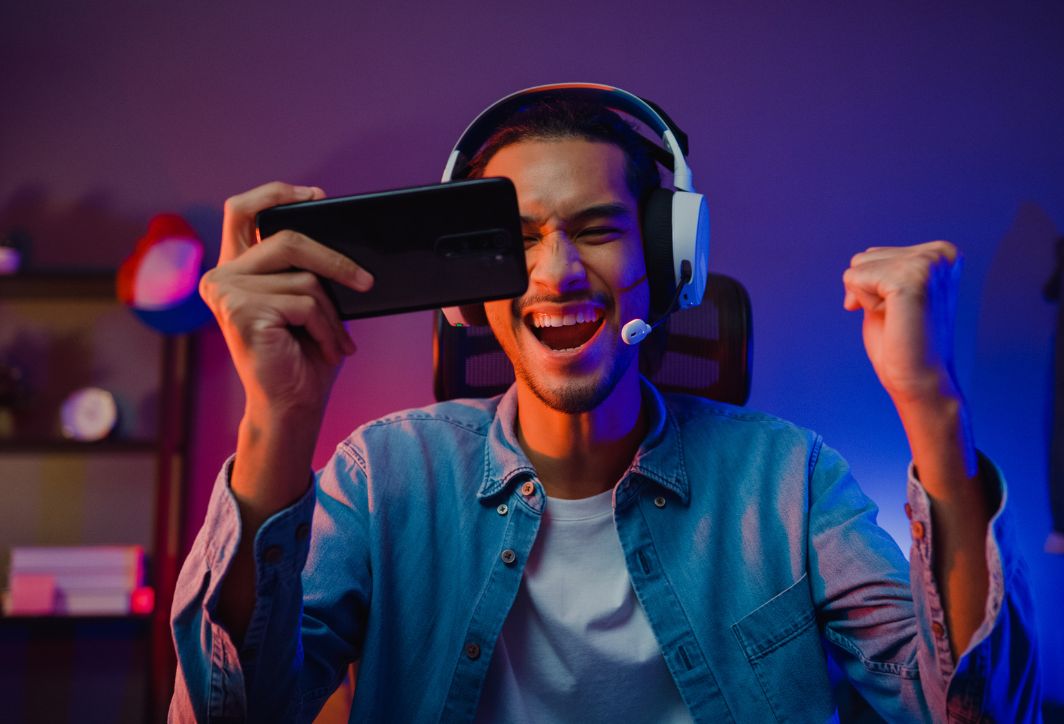
Recording and uploading high-level gaming sessions to social media attracts a lot of views.
How to professionally record gameplay videos on a computer.
Computers are the most popular platform for producing professional gaming content. Here are three of the most common methods:
1. Use OBS Studio software (free and professional versions available)
OBS (Open Broadcaster Software) is the "king" in the screen recording and livestreaming industry.
Advantage: Completely free, no watermarks, highly customizable, and excellent video quality.
How to do it:
- Download and install OBS Studio.
- In the section Sources, press the button + and choose Game Capture.
- Select the "Capture specific window" option and choose the game window you currently have open.
- Enter adjusting -> Speed To adjust the video format (usually MP4) and quality.
- Press Start Recording To begin.
2. Use Xbox Game Bar (extremely fast on Windows 10/11)
This feature is built into Windows; you don't need to install any additional software.
Advantage: Convenient, lightweight, and built-in.
How to do it:
- Open the game you want to spin.
- Press the key combination
Windows + G. - Press the circular (Record) button or use the shortcut key.
Windows + Alt + R. - The video will be automatically saved in the folder. Videos/Captures.
3. Use NVIDIA ShadowPlay (for computers with NVIDIA graphics cards)
If you own an NVIDIA graphics card, ShadowPlay is the best option for recording video without dropping FPS.
Advantage: Using hardware for encoding makes it extremely smooth.
How to do it:
- Open NVIDIA GeForce Experience.
- Press
Alt + ZTo open the control panel. - Select record and customizable quality (4K, 60fps).
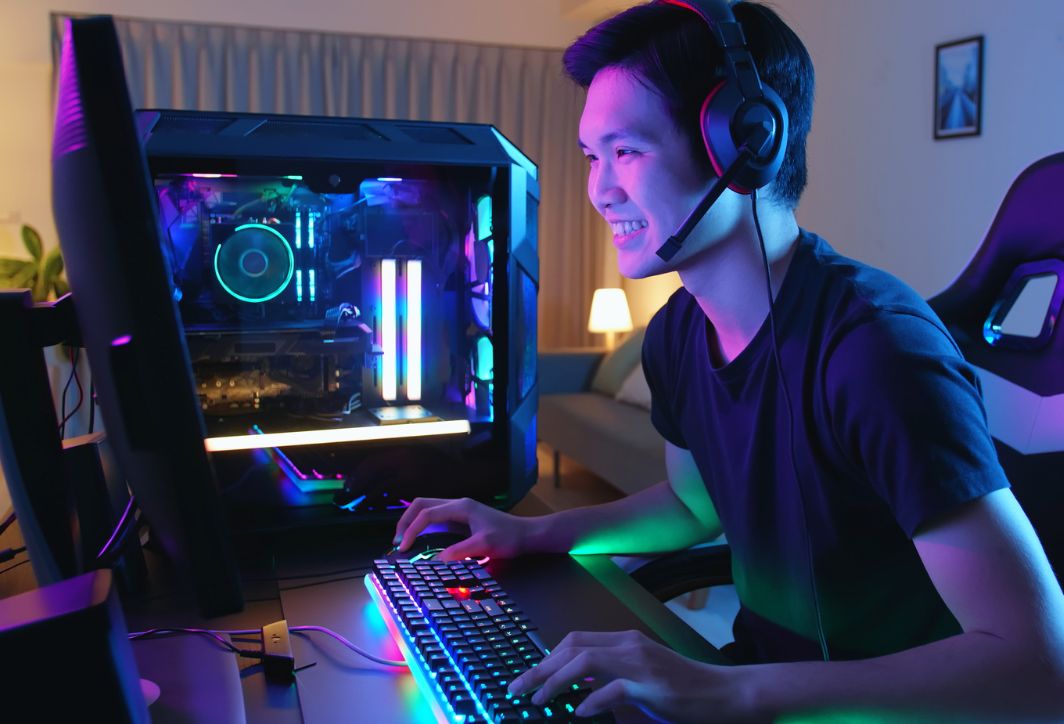
Recording gameplay videos on a computer is extremely simple.
How to record gameplay videos on your phone (Android & iOS)
With the explosion of mobile games like Arena of Valor, PUBG Mobile, and Free Fire, the demand for screen recording on mobile phones is huge.
1. For iPhone (iOS)
Apple has built in an extremely stable screen recording feature.
- Enter Setting -> Control Center.
- Add item Screen recording.
- Swipe down the screen (Control Center), then tap and hold the recording icon to turn on the microphone (if you want to record your voice).
- Press start and open the game.
2. For Android phones
Most current phone brands, such as Samsung, Xiaomi, and Oppo, have a dedicated screen recording feature in the notification bar.
- If the device doesn't have it, you can use the app. AZ Screen Recorder or XRecorder.
- Note: From Android 10 onwards, these apps can capture "System Sounds" (in-game sounds) most clearly.

Record your amazing win on your phone.
Factors affecting the quality of game recording videos.
To get a video with millions of views, you need to pay attention to the following technical specifications:
1. Resolution
Try to shoot at the minimum level. 1080p (Full HD)If your computer has powerful specifications, you can upgrade. 2K or 4K To ensure the sharpest image quality when uploading to YouTube.
2. Frame Rate (FPS)
In gaming, FPS (frames per second) is a crucial factor for survival.
- 30 FPS: It's acceptable for light games.
- 60 FPS: The current standard for gaming videos is to create a smooth viewing experience for the audience.
3. Data rate (Bitrate)
The higher the bitrate, the less pixelation there will be in the video, especially during fast-moving scenes. For 1080p 60fps, you should set the bitrate to... 8,000 to 12,000 Kbps.
Secrets to creating professional-looking gaming videos.
Simply recording your screen isn't enough; try these tips to make your videos more engaging:
- Using an external microphone: Sound plays a crucial role in the success of a video. A noise-canceling microphone will make your commentary sound more engaging.
- Add Facecam: Audiences enjoy seeing the players' expressions. You can use a webcam and place it in the corner of the screen via OBS software.
- Post-production editing: Use software like CapCut, Adobe Premiere, or Davinci Resolve to cut out unnecessary sections, add effects, and add background music.
- Optimize your computer's configuration: Before recording, close any background applications to ensure sufficient resources for the game and recording software.
List of the best PC game video recording software.
Not all computers run OBS well. Choosing the right software for your computer's configuration is crucial to avoid FPS drops.
For low-end PCs:
- Bandicam: This is legendary software with excellent compression capabilities. It allows for high-quality video recording while consuming very little system resources.
- FBX Free Game Recorder: A newly emerging option automatically adjusts parameters to ensure smooth gameplay during recording.
For mid-range and high-end computers:
- Action! Game Recorder: It features a modern interface, supports 4K video recording, and includes built-in tools for monitoring hardware performance while playing.
- Mirillis Action: Known for its ability to record screen with virtually no lag.
Don't miss these useful software programs that help you record gameplay videos on your computer.
Top apps for recording gameplay videos on mobile phones in 2026
In addition to the operating system's built-in features, third-party applications offer more customization options for bitrate, frame rate, and quick editing tools.
- Omlet Arcade: More than just a screen recording app, this is also a social network for mobile gamers, supporting cross-platform livestreaming.
- Mobizen Screen Recorder: It allows you to record 2K resolution video and features a "Clean Recording Mode" to completely remove unnecessary on-screen controls.
- Google Play Games: Few people know that this app has a built-in screen recording feature, which is extremely stable for older Android devices.
How to set up perfect audio when recording video games.
Sound is extremely important for gaming videos. A video with great visuals but distorted sound, or game noises that are too loud and drown out the dialogue, will drive viewers away.
Audio Track Separation
When using OBS, you should split the audio into separate tracks:
- Track 1: In-game sound (System Audio).
- Track 2: Microphone (Voiceover).
- Track 3: Your friends' voices on Discord/TeamSpeak. This separation makes it easier to balance the volume during post-production (editing).
Use filters for your microphone.
Apply these basic filters to make your voice sound more professional:
- Noise Suppression: Eliminate computer fan noise and traffic noise.
- Gain: Increase the volume if your microphone is too quiet.
- Compressor: This helps to balance the sound, preventing you from shouting too loudly and causing discomfort to listeners.
Instructions for setting up screen recording for different game genres.
Each game genre has its own unique motion characteristics, so the parameter settings need to be adjusted accordingly.
- MOBA Games (Arena of Valor, League of Legends): Prioritize image detail so viewers can clearly see the skills. A high bitrate and 1080p resolution are recommended.
- FPS games (CS:GO, Valorant, PUBG): Prioritize frame rate. Shoot at this level. 120 FPS Or higher if your monitor supports it, helping those aim shots look as smooth as possible.
- Open-world games (Genshin Impact, Elden Ring): Prioritize color and lighting. You can use additional color filters (LUTs) to make your video look more cinematic.
Common mistakes when recording gameplay videos and how to fix them.
Here are some common problems that 90% beginners encounter:
- Black Screen: This often happens on OBS. To fix it: Run OBS with administrator privileges or switch from “Game Capture” to “Window Capture”.
- The video is stuttering even though the game is running smoothly: The CPU is overloaded. Try reducing the FPS of your recording software to 30 or use a hardware encoder such as NVENC or QuickSync.
- No sound in the game: Check that the Output Device in your recording software settings matches the headphones you are using.
Simple video gaming post-production process for beginners.
Filming is just the beginning; the "magic" in post-production is when the video truly shines.
- Step 1 – Cutting: Eliminate unnecessary movement sequences and loading screens.
- Step 2 – Insert Effects: Add meme clips and slow-motion effects to impressive plays.
- Step 3 – Background Music (BGM): Use royalty-free music (NCS) to avoid getting penalized on YouTube/TikTok.
- Step 4 – Export: Choose the H.264 (MP4) format for the best balance between file size and quality.
Proper post-production helps create high-quality and engaging gaming videos.
SEO and video upload strategies to achieve millions of views.
To make the keyword "gameplay video recording" effective, you need to know how to distribute your videos:
- Title: It must contain the main keyword and be intriguing (e.g., "How to record extremely smooth gameplay videos on a low-end computer").
- Thumbnail: Using strong contrasting colors, prominent game character images, and large, easy-to-read text.
- Description: Write at least 200 words about the video content, including keywords and timestamps.
- Tags: Use relevant tags such as Instructions on screen recording, game recording software, gaming tips…
Recording gameplay videos isn't difficult if you choose the right tools and master the basic settings. Whether you're using a PC or a phone, the ultimate goal is to deliver a smooth visual experience and engaging content to your audience. Hopefully, this article has provided you with enough knowledge to begin your content creation journey.