

Have you noticed that some videos uploaded on YouTube, Facebook, TikTok, Instagram, etc., have blurred out people's faces? The reason is to protect their privacy and prevent them from appearing in other people's videos. So, if you accidentally film a video with someone in it and want to blur their face to avoid affecting them, how should you do it? In this article, Right Media will guide you on how to easily blur faces in videos, even for beginners.
When is it necessary to blur the faces of people appearing in a video?
Before diving into the detailed instructions, let's understand why blurring faces in videos is so important. It's not just a technical matter; it demonstrates respect and professionalism on the part of the content creator. Below are some situations where blurring faces in videos is necessary:
- Protecting personal privacy: This is the most common scenario, as not everyone wants their image publicly displayed on social media. Blurring the faces of unrelated individuals or those who do not consent to be featured is the minimum measure taken to respect their privacy.
- Protecting the identities of sensitive individuals: In interview videos, investigative reports, or videos related to sensitive social issues, blurring the faces of subjects is mandatory. This helps protect them from the risks, stigma, or even danger that can result from being identified. This is especially important for children, where protecting their identity is a top priority.
- Comply with laws and policies: In many countries and on major platforms like YouTube and Facebook, there are strict regulations regarding the use of other people's images without permission. Proactively covering someone's face can help you avoid legal trouble or having your video removed for violating community guidelines.
- Increase focus on the main content: Sometimes, the presence of too many irrelevant faces in the background can be distracting to the viewer. By blurring these faces, you can direct the audience's attention to the main character or the core message the video aims to convey.
- Purpose of artistic creation: Besides the reasons above, covering faces is sometimes an artistic intention. It can create mystery and intrigue for the character, or create a unique visual style for your video.
Instructions on how to easily cover your face in a video.
With these simple steps video editing softwareYou can now blur the face of the subject you want. Here are two of the simplest ways to blur faces on both phones and computers that anyone can do:
1. How to cover your face in videos on your phone (Super easy with CapCut)
CapCut is currently the easiest-to-use and most popular video editing app. It offers extremely effective and easy-to-use blurring tools. Besides CapCut, there are many other video editing apps on mobile phones that you can choose from. The guide below is for those who are using CapCut to create content on their mobile devices:
Step 1: Download the application and create a new project.
- Download the CapCut app from the App Store (iOS) or Google Play Store (Android).
- Open the app, tap "New project" and select the video you want to edit from your library.
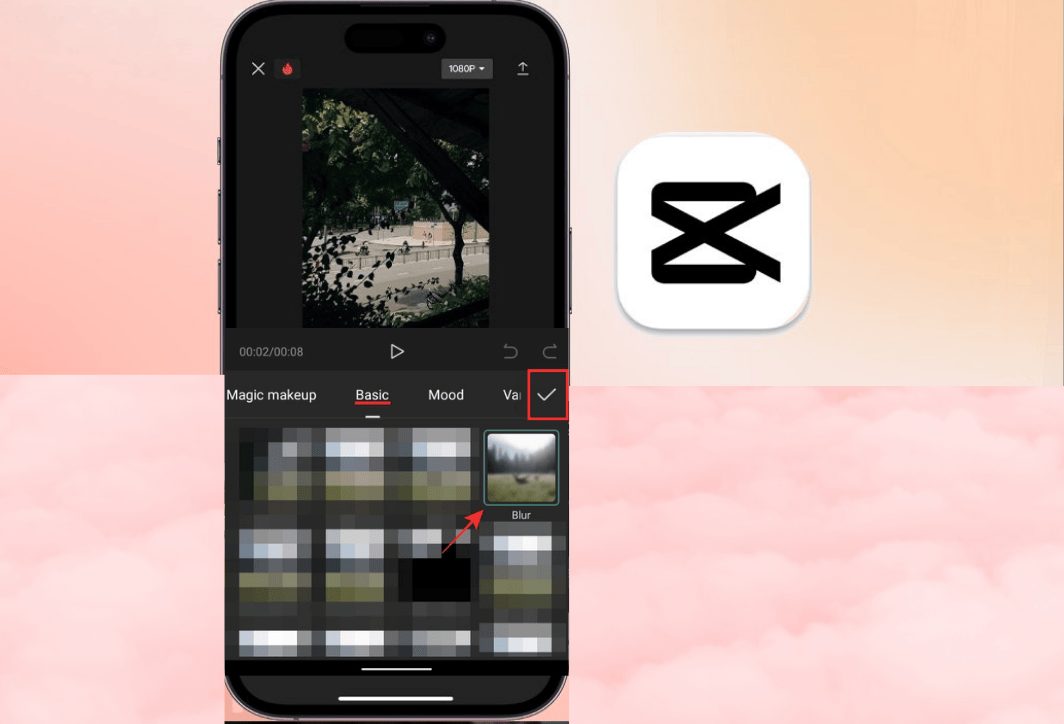
Step 2: Use the blur effect
- On the toolbar below, select "Effect" (Effects).
- Select next "Video effects" (Video Effects).
- Go to the tab "Basic" (Basic). Here you will see many different blurring styles such as "Blur" (Blur) "Blurred and Scribbled" (Halo Blur) or "Mosaic" (Mosaic – square effect). The "Mosaic" effect is the most popular choice for masking faces.
- Click on the effect you want and then click the checkmark to apply it.
Step 3: Customize the area to be covered.
- After applying, the effect will cover the entire screen. To cover specific areas, return to the main interface, find and select the option. "Object" (Object) on the toolbar.
- Select "Video effects" You just added it.
- Now, you can use two fingers to zoom in/out and move the blur area to the exact part of the face you want to cover.
- You can also adjust the blur intensity by selecting "Customize" (Adjust).
Step 4: Help the concealer move with your face (Motion Tracking)
This step helps you avoid manually adjusting every second. If the face in the video moves, you need to make the blur area move with it:
- Drag the blur effect slider to the desired length of time to obscure the image.
- Move the time cursor to the beginning of the segment you want to mask. Position the blurred area correctly over the face.
- Click on the icon KeyframeA keyframe will be added to the effects bar.
- Fast forward the video to a point where the face moves out of the blur. Simply move the blur back to completely cover the face. CapCut will automatically add a new keyframe.
- Repeat this process whenever the face moves significantly. CapCut will automatically create smooth movement between keyframes.
Another, simpler way: You can also use stickersGo to the "Stickers" section, choose a fun icon, place it on the face, and use Keyframe to move it as instructed above.
2. How to hide your face in videos on a computer (Free with YouTube Studio)
If you plan on uploading videos to YouTube, there's a free, automatic, and incredibly powerful face-masking tool built right into YouTube Studio.
Step 1: Upload your video to YouTube
- Log in to your YouTube channel.
- Upload the video as usual. You can set the video mode. "Private" or "Not publicly disclosed" while editing.
Step 2: Open the YouTube editor.
- Enter YouTube Studio news "Content".
- Find the video you just uploaded and click on the pencil icon (Details).
- In the menu on the left, select "Editor" (Editor)
Step 3: Use the blurring tool.
In the editor, you'll see a row with a water droplet icon and text. "Blurring" (Blur). Click the plus sign (+) next to it. You will have two options:
- Face Blur: This is an automatic option; YouTube will scan your entire video and detect all faces. It will then display a list of the identified faces. You simply select the faces you want to blur and click. "Apply"YouTube's technology will automatically track and blur those faces throughout the video.
- Custom Blur: If you want to blur an object, a specific area (like a license plate, logo), or if YouTube doesn't recognize your face, use this option. A blur box will appear, and you can change its size and position. Importantly, you can customize this box. "Subject tracking" or "Fix the position".
Step 4: Save changes
Once you are satisfied, press "Save"YouTube will take some time to process and apply the changes.
Some things to keep in mind when editing and uploading videos with face blurring.
Blurring a character's face in a video can be easily done using editing apps. You can do it directly on your smartphone or with other professional editing equipment. To ensure the best results, keep these few things in mind:
- Check carefully: After covering your face, carefully review the entire video, especially the fast-moving scenes, to ensure that your face is not visible at any point.
- Full coverage: Ensure the blur area is large enough to cover the entire face, even when the character tilts their head or turns part of their face away.
- Consider the sound as well: If protecting the subject's identity is extremely important (for example, in investigative reporting), in addition to obscuring their face, you should also consider distorting their voice.
- Choose the appropriate method: Mosaic (square) effects are generally preferred over blur effects because they provide better coverage, making them suitable for journalistic purposes. Meanwhile, fun stickers are more appropriate for entertainment videos and vlogs.
- Inform viewers (if necessary): At the beginning or in the video description, you can add a short line like this: "Some faces in the video have been blurred to ensure privacy." To demonstrate transparency and professionalism.
Mastering how to mask faces in videos is not only a useful editing skill but also a crucial step towards becoming a conscientious and competent content creator. It shows you respect the community and are careful with the product you create. Hopefully, with the detailed instructions above, you can confidently handle any video that needs privacy protection. Wishing you success in creating high-quality and meaningful videos!





 English
  Vietnamese