

Do you want to capture the most natural moments without your phone screen shining brightly, drawing attention or draining your battery? Knowing how to record videos with the screen off on iPhone and Android will be a powerful tool to help you work more discreetly and effectively. Let's explore a complete set of great tips to help you film even when the screen is locked below!
Why do you need to record video with the screen off?
While using your phone, there are times when you need to discreetly capture images or simply want to maximize battery life when recording long videos. However, the default setting on most smartphones is that the screen must always be on when the camera app is active.
Knowing how to record videos with the screen off on iPhone and Android is not only a fun trick but also highly practical. In this article, we'll guide you through everything from built-in operating system tips to third-party apps to help you master your camera in the most professional way.
There are many reasons why this technique is extremely useful in everyday life:
- Maximum battery saving: The screen is the most battery-draining component on a phone. Turning off the screen can double or even triple the video recording time.
- Natural filming: When the screen is black, those around you won't know you're filming, making it easier to capture natural, unscripted moments.
- Reduce the machine's temperature: Continuous filming causes the device to heat up very quickly. Turning off the screen helps reduce a significant amount of heat, protecting the internal components.
- Avoid being disturbed: When the screen is off, message or call notifications won't pop up and interrupt your viewing experience.
How to record video with the screen off on iPhone (iOS)
iPhones are known for their high level of security, so Apple doesn't provide this feature directly in the settings. However, we can still exploit some clever "loopholes" in the feature. Accessibility to implement.
1. Use the VoiceOver feature (the most effective way)
This is how to film when the screen is completely black without installing any additional apps.
- Step 1: Enter Setting news Accessibility news VoiceOver and turn it on (Note: The operation when enabling VoiceOver is slightly different; you need to tap once to select and tap twice to open).
- Step 2: Open the application Camera, switch to mode Record a video.
- Step 3: Start pressing the record button.
- Step 4: Now, tap the screen three times in quick succession with three fingers. The iPhone screen will turn black, but the device will continue recording.
- Step 5: To turn the screen back on, simply tap three times quickly with three fingers.
2. Take advantage of the "Guided Access" feature.
This method allows you to lock the camera in a certain state and dim the screen.
- Step 1: Enter Setting news Accessibility news Access the guide. and turn this feature on.
- Step 2: Open the Camera app and press the record button.
- Step 3: Press the power button three times quickly to activate Guided Access.
- Step 4: Select the area of the screen you want to disable or simply lower the screen brightness to the lowest level.
3. Use specialized apps on the App Store.
If the manual methods above are too complicated, you can look for applications like SP Camera or Sneaky CamThese applications are designed to simulate a web browser screen or a black screen while the camera is still running in the background.

Recording video with the screen off on iPhone is simple.
How to record video with the screen off on an Android phone.
The Android operating system is more open, so performing this trick is more varied and easier compared to the iPhone.
1. Use the Background Video Recorder app.
This is the most popular app on Google Play for this purpose.
- Features: It allows you to schedule filming, automatically turns off the screen when filming starts, and doesn't emit any notification sounds.
- Use: Simply open the app, press the record button, and you can easily return to the home screen or press the power button to turn off the screen.
2. Use multitasking mode (Floating window)
Some Samsung and Xiaomi phone models allow you to open the camera as a small window. You can drag this window to hide it at the edge of the screen or lower the screen brightness to 0 while the app continues running in the background.
3. Utilize the Game Booster feature (on Samsung devices)
Samsung's Game Booster toolkit includes a "Lock screen to save battery" feature while apps are running. You can add the Camera app to your list of games to use this feature.
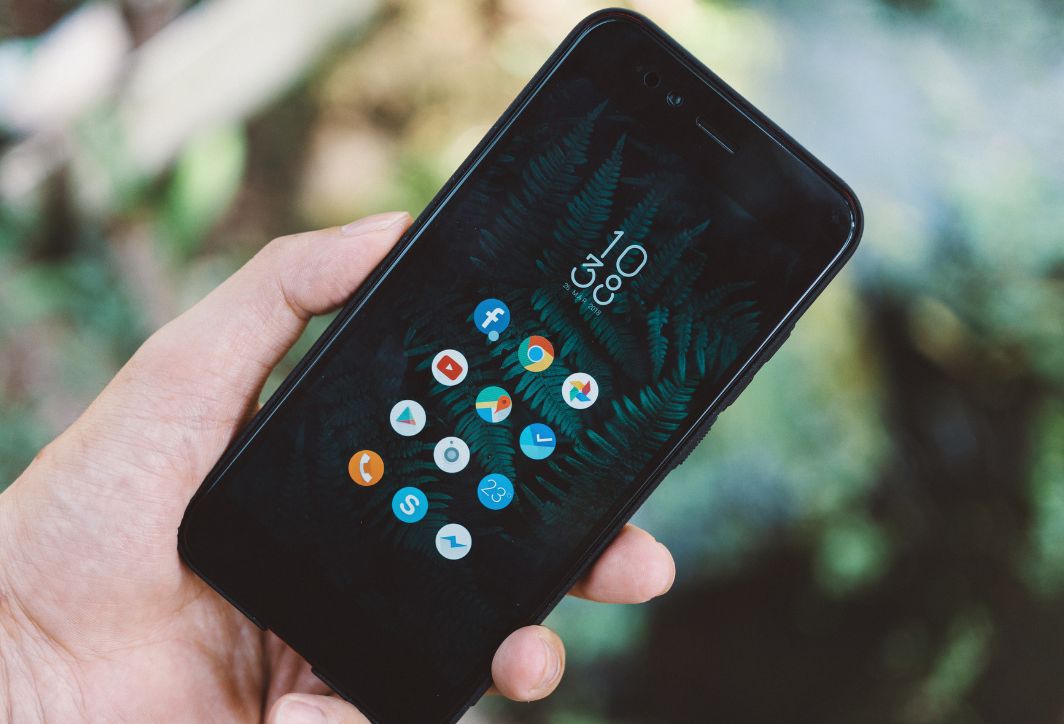
Record video when the Android screen is off.
Things to keep in mind when recording videos with the screen off.
Although this is a great tip, you need to keep the following in mind to avoid trouble:
- Legal and ethical issues: Only use this method for legitimate purposes such as filming family, saving personal footage, or monitoring home security. Absolutely do not infringe on the privacy of others.
- Check your memory capacity: Since you can't see the screen, you won't know when the device will indicate that the memory is full and stop recording. Make sure your device has plenty of free space before you start.
- Monitor the machine's temperature: Turning off the screen helps reduce heat, but recording high-resolution (4K) video still causes the processor to heat up. If you notice the device getting too hot, pause the recording to protect the battery.
- Notification sound: Some phones will make a "beep" sound when recording begins or ends. Switch your phone to silent mode if you want complete secrecy.
How to optimize quality when recording video with the screen off.
To ensure your videos are still sharp even when filmed secretly, you should apply the following tips:
- Cleaning the lens: Before putting the phone in your pocket or positioning it for shooting, wipe the camera lens clean to avoid blurring.
- Fix the position: Use a small tripod or a sturdy support to prevent camera shake when you're not holding the camera directly.
- Set the resolution beforehand: Go to the camera settings and select the highest resolution (4K or Full HD 60fps) before activating the screen-off mode.
How to optimize front camera settings when recording video with the screen off.
Recording video with the screen off on an iPhone or Android means you can't monitor the frame throughout the recording process. Therefore, the setup step is extremely important to ensure the recorded clip is flawless.
1. Focus lock and exposure lock (AE/AF Lock)
When you shoot with the screen off, the camera automatically adjusts the lighting and focus point to track the moving subject. This can sometimes result in videos that are overexposed or blurry.
Tip: Before you begin, press and hold on the key point on the screen until the text appears. "AE/AF lock" This appears. This helps maintain consistent brightness and focus regardless of whether or not a foreign object passes in front of the camera.
2. Turn off notifications and calls (Do Not Disturb mode)
Nothing is worse than being secretly filming when a call comes in, making your phone vibrate or ring.
Operation: Always keep the mode on. "Do Not Disturb" Or use Airplane mode. This not only prevents video interruptions but also ensures complete privacy for your recording session.
3. Choose the optimal video format.
Because recording videos with the screen off usually takes a long time, the file size will be very large.
- On iPhone: You should go in Settings > Camera > Format and choose High Performance Vehicles (HEVC)This format reduces file size by half while maintaining sharp image quality.
- Frame rate: For general surveillance recording, choose 1080p at 30fps to save memory. Only choose 4K or 60fps when you really need extremely high detail for action shots.
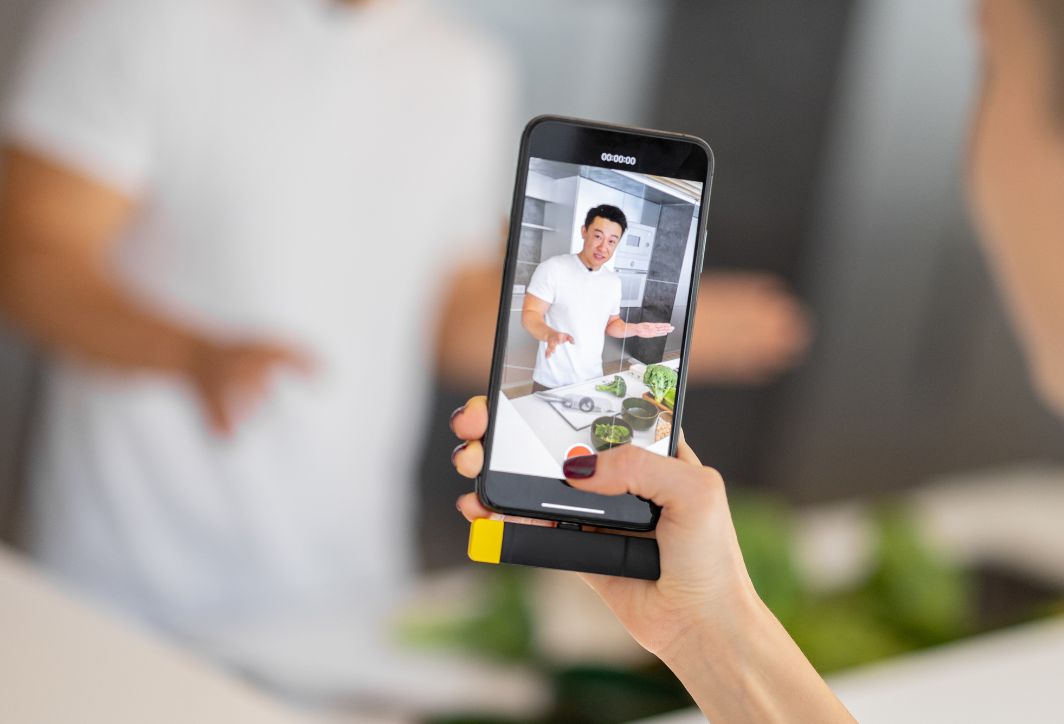
Be cautious when recording videos with the screen off on your smartphone.
Practical applications of the screen-off recording technique.
The trick of recording videos with the screen off on an iPhone isn't just for tech enthusiasts; it's also a practical solution in many everyday situations.
- 1. Turn your old phone into a security camera (CCTV): If you have an old iPhone or Android phone that you're not using, plug it in and use the screen-off recording trick to monitor a room or doorway. Turning off the screen prevents the device from overheating from running continuously 24/7 and makes it look like a normal object, thus not attracting the attention of intruders.
- 2. Film your travel vlog without distractions: When you're cycling, climbing, or hiking and you attach your phone to your chest/helmet, the bright screen can be distracting and cause eye strain. Using this trick allows you to record your entire journey while staying focused on the path and maximizing battery life for your long trip.
- 3. Record videos as evidence in emergency situations: In situations where you need to record evidence of wrongdoing or disputes without wanting to provoke the other party further upon seeing the camera, filming with the screen darkened is an effective way to protect yourself. You can hold the phone in your hand or place it on a table as if it were switched off, helping to prevent the situation from becoming more tense.
- 4. High-quality audio recording with accompanying video: Sometimes you attend a workshop or lecture and want to record the lecture along with slides. Leaving the screen on for two hours straight will definitely drain your device. The trick of turning off the screen will allow you to have the entire lecture video file from beginning to end without worrying about battery life.
Frequently Asked Questions (FAQs) about recording video with the screen off
- Q: Will recording video with the screen off damage the camera?
A: Absolutely not. Turning off the screen only disables the display unit; it doesn't affect the camera sensor.
- Q: Can older iPhones do this?
A: All iPhone models from the 6s onwards can smoothly apply the VoiceOver trick.
- Q: Why doesn't the screen turn off when I tap with three fingers?
A: You need to type quickly and steadily. Make sure VoiceOver is correctly enabled in Accessibility.
Mastering the technique of shooting videos with the screen off on iPhone and Android opens up many opportunities for you to create and conveniently store precious moments. Hopefully, with the detailed instructions above, you have gained another extremely useful tech tip. If you are looking for a company that can turn your video ideas into high-class media artworks, let us help you. Right Media We're here to support you. We don't just film; we tell your story using the most professional cinematic language.





 English
  Vietnamese